
MT5 to Laxarr: The Ultimate Auto-Sync Setup Guide
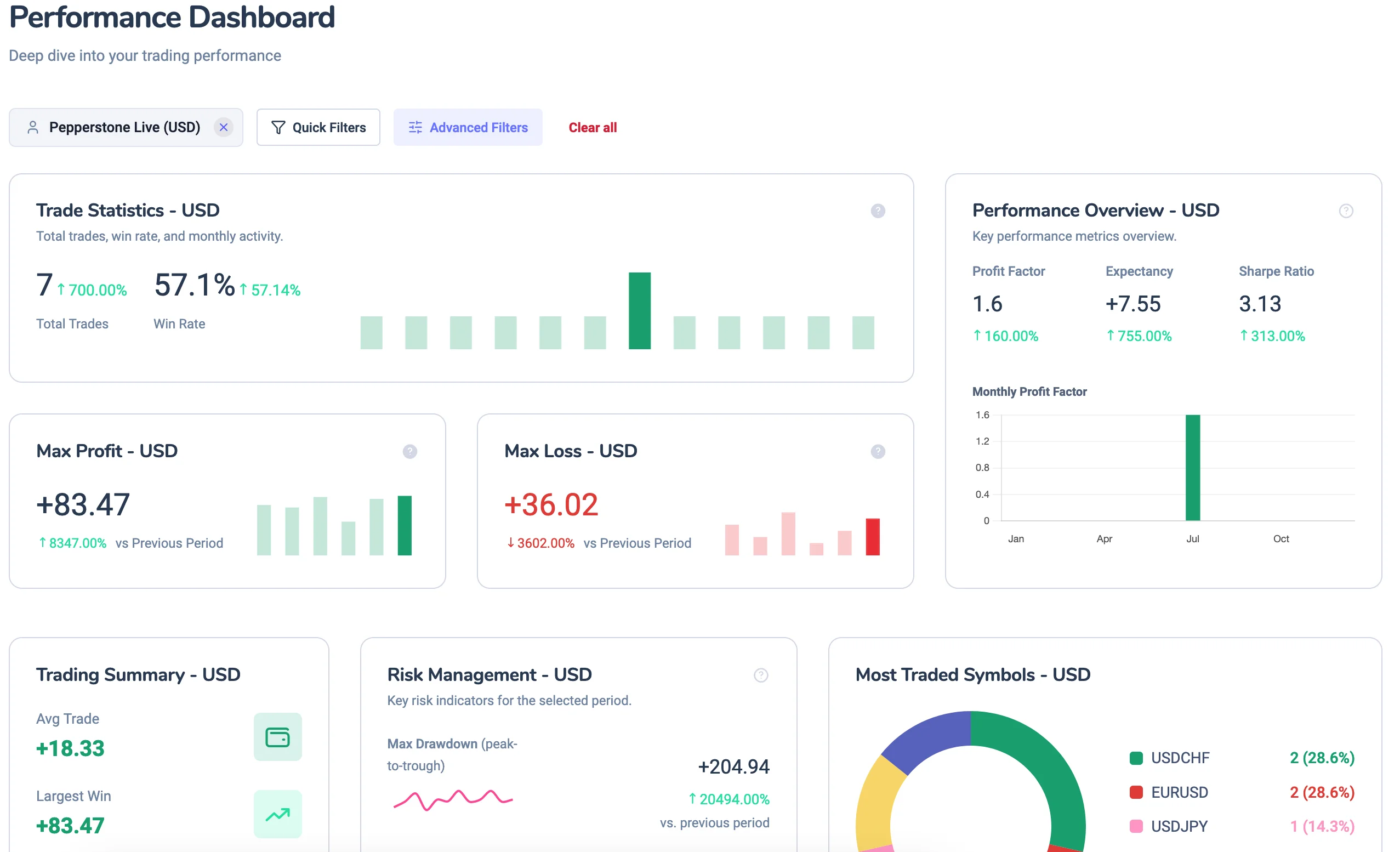
Manual trade entry is the biggest friction point in journaling. You finish a trade, switch tabs, type in the entry, exit, profit, and lots — and repeat that dozens of times. It's tedious, error‑prone, and kills your momentum.
Laxarr's MT5 auto‑sync changes everything. With a simple Expert Advisor (EA), your MetaTrader 5 trades are automatically pushed into your journal — no manual entry, no typos, no wasted time.
1. Why Auto‑Sync is a Game‑Changer
- Zero Data Entry Errors: No more mistyped prices or forgotten lots.
- Real‑Time Journaling: The moment you close a trade, it appears in your Laxarr journal.
- More Time for Analysis: Spend your time on Post‑Trade reviews, not typing.
- Complete Trade History: Every trade is captured, including partial closes, commissions, and swaps.
2. Prerequisites Before You Start
- A Laxarr account — Sign up for free at Laxarr (Premium plan or higher includes MT5 sync).
- MetaTrader 5 installed — Compatible with all MT5 brokers.
- Your API Key — Found in your Laxarr account settings under "MT5 Sync".
- EA File — Download the Laxarr MT5 EA file (.ex5) from your Laxarr dashboard.
3. Step‑by‑Step Installation
Open MT5, go to File → Open Data Folder.
Inside the Data Folder, go to MQL5 → Experts.
Copy LaxarrSync.ex5 and paste it into the
Experts folder.
Close and reopen MetaTrader 5. The EA will now appear in the Navigator panel.
4. Configuring the EA in MT5
Open any chart, drag LaxarrSync from the Navigator onto the chart.
In the Inputs tab, paste your API Key into the "API_Key" field.
Check the "Allow Automated Trading" box.
Click OK to activate the EA. You'll see a smiley face icon on the chart if it's connected successfully.
5. Verifying Your Sync
- Check your Laxarr journal: Your MT5 trades should appear automatically.
- Look for the sync timestamp: Trades appear within 10–30 seconds of closing.
- Check the Experts tab in MT5: Errors will appear in the Experts tab at the bottom of the terminal.
6. Troubleshooting Common Issues
- "Invalid API Key" error: Double‑check you've copied the entire API key without extra spaces.
- EA not showing in Navigator: Ensure the file is in the correct folder and you restarted MT5.
- No trades appearing: Check that you've enabled "Allow Automated Trading".
- Duplicates in journal: Attach the EA to only one chart.
Conclusion: Trade More, Type Less
MT5 auto‑sync eliminates the biggest friction point in journaling — manual data entry — so you can focus on what really matters: reviewing your performance, understanding your psychology, and improving your edge.
Ready to set up MT5 auto‑sync?
Laxarr makes journaling effortless with automatic MT5 sync. Start your free trial today and never type a trade again.
Get started free